support-us@roborock.com
We'll get back to you within 1 business day.
1-855-960-4321
Helpline hours: 24/7, US only

②5GHz:
The following applies to S7Max Ultra, S8, S8+, S8 Pro Ultra and Q Revo:
The robot vacuum cleans in a zig-zag pattern only to enable faster and more efficient cleaning that saves time. Room boundaries will be skipped and certain spots may be missed. This function is ideal for daily cleaning.
The following applies to S7Max Ultra, S8, S8+, S8 Pro Ultra and Q Revo:
Yes, the robot will clean the floor along its direction to minimize scraping against floor seams in full cleaning or room cleaning. Please set up floor direction and enable “clean along floor direction” in the app for this feature to work.
1. Only the following models support QR code.
Roborock Q7 Max Series
Roborock Q7 Series
Roborock Q5 Series
Roborock S8 Series
Roborock Q Revo
Roborock Q5 Pro Series
Roborock Q8 Max Series
Other models don't support QR code.
2. I cannot find the QR code.
Some products do not have QR code. To add one of these devices, go to the Roborock app homepage and tap "Search for Device". Please tap on "No QR code found" and proceed with the next step. See picture below:
3. If I'm using the models that supports QR code, where's the QR code?
The QR code is located below the top cover or dustbin or on the top of the machine.
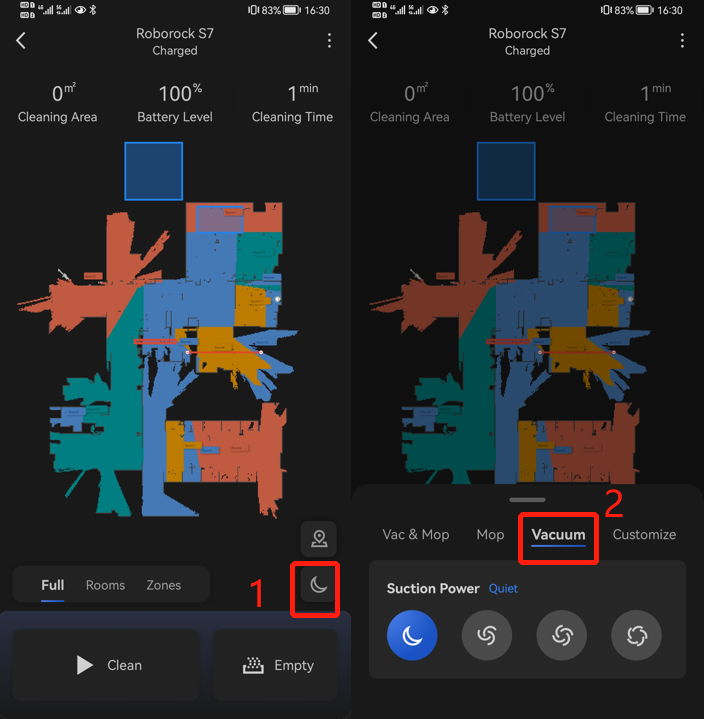
The following applies to S7, S7MaxV, S8 and S8 Pro Ultra.
There are 2 ways to achieve that:
1) Please remove the water tank and then start cleaning
2)Choose Vacuum instard of Vac&Mop or Mop.
Note: The UI may change as firmware updates without prior notice.
The following applies to Q Revo, S8 Pro Ultra, S8+, S8, S7Max Ultra, S7MaxV, S7, S6MaxV, S6Pure, S5Max and S4Max.
You can set the device to do a zone/room cleaning for more than once. In this way, the device will follow a cross-hatch pattern.
The following applies to Roborock S7, S7MaxV, S7Max Ultra, S6MaxV, S8, S8+ and S8 Pro Ultra only.
There are two ways to turn on child lock.
Once the child lock is enabled, the device will not respond if any button is pressed until you disable the lock.
The following applies to S7, S7MaxV, S7Max Ultra, S8, S8+, S8 Pro Ultra and Q Revo only.
The device is equipped with ultrasonic carpet recognition. It can recognize carpet with extraordinary accuracy. You can choose different carpet modes according to your needs. For example, you can set the robot to lift its mop automatically when it detects carpet. That mode is recommended for short-pile carpet.
Here is the brief description for how to use it:
Below we take S7 as example. There may have slight difference due to different models and firmware versions.
For the first map, when robot is creating the first map, there are 4 requirements to meet:
For the 2-4 maps, please change building layout to multi-floor (for others: enable multi-floor maps feature) first and click “create new map”, and then "create", you don't need to move the charging dock together with the vacuum to the other floor. You just need to move the vacuum alone to map that floor. The vacuum will come back to the starting point where you let it start the cleaning, and store the new map.
After all maps are successfully created, you don't need to carry the charging dock with the vacuum to the other floor. Just move the vacuum alone, start the vacuum and it will recognize which floor it is, and use the corresponding map.
How many maps can robot cleaner save?
How do I reset saved cleaning map?
How do I merge or divide rooms on the map?
Step 1. Hold the home icon button for 3-5 seconds.
Step 2. Use a pin to press the reset button next to wifi LED just once, and power button, home button and spot cleaning button's light will be out. When you are doing this, please make sure home button is still under your finger's holding without moving.
Step 3. Keep holding home button for 5 seconds after you press reset button until power button blinks again and you hear the tone "Restoring the initial version. It will take about five minutes. Please wait patient", and then you could remove the finger.
Notice:
1. Factory default restore will disconnect RoboVac from wifi. Please re-add it after factory default restore.
2. Factory default restore will also make RoboVac's firmware version come back to original one when it was made in factory. After factory default restore, you could go to RoboVac's setting--general setting--check for updates to upgrade its firmware to latest one.
3. Factory default restore will delete all your setting on device like scheduled cleaning.
4. Factory default restore will delete every single cleaning's log including every cleaning's duration, size and map. But the total duration, total times of cleaning and total size will be still kept there.
|
Yes. Onboard cliff sensors will detect any drops and prevent the robot from falling.
Related FAQ:What is the maximum height of a threshold that Roborock can pass over? |
Notes:
a. Make sure your phone is already connected to Wi-Fi;
b. Open the top of your cleaner to see the Wi-Fi indicator light during the connection process.
Related FAQ:
How do I connect my robot cleaner to Roborock app on an iOS device?
How to connect Roborock to Mi Home on an Android device?
How to connect Roborock to Mi Home on an iOS device?
Notes:
a. Make sure your phone is already connected to Wi-Fi;
b. Open the top of your cleaner to see the Wi-Fi indicator light during the connection process.
Note:
The Wi-Fi indicator on the top of your vacuum will go from flashing to solid if it has connected successfully.
Related FAQ:
How do I connect my robot cleaner to Roborock app on an Android device?
How to connect Roborock to Mi Home on an Android device?
How to connect Roborock to Mi Home on an iOS device?
a. Make sure your phone is already connected to Wi-Fi;
b. Open the top of your cleaner to see the Wi-Fi indicator light during the connection process.
3.3.2.1 Select your device’s model from the “Home appliance” category.
3.3.2.2 Tick “Operation confirmed”.
Related FAQ:
How to connect Roborock to Mi Home on an iOS device?
How do I connect my robot cleaner to Roborock app on an iOS device?
How do I connect my robot cleaner to Roborock app on an Android device?
How do I connect robot vacuum to Amazon Alexa via Roborock Home or Mi Home?
How do I connect robot vacuum to alexa via skill Roborock Plus?
Notes:
a. Make sure your phone is already connected to Wi-Fi;
b. Open the top of your cleaner to see the Wi-Fi indicator light during the connection process.
Note:
The Wi-Fi indicator on the top of your vacuum will go from flashing to solid if it has connected successfully.
Related FAQ:
How to connect Roborock to Mi Home on an Android device?
How do I connect my robot cleaner to Roborock app on an iOS device?
How do I connect my robot cleaner to Roborock app on an Android device?
How do I connect robot vacuum to Amazon Alexa via Roborock Home or Mi Home?
How do I connect robot vacuum to alexa via skill Roborock Plus?
How do I connect robot vacuum to Google Home?
Why cannot my robot cleaner work under China region of Mi Home app?
|
Carpet boost mode means device will auto increase suction strength to max when it is on carpet to vacuum stuff better. The brush could recognize carpet by feeling its resistance increased, comparing to hardwood or tile. The suction strength will recover to normal on hard floor when resistance decreases.
Related FAQs:Why does robot cleanner refuse to clean the shag carpet? Why does robot cleanner refuse to clean the dark carpet? |
|
Usually, we suggest customers put device on dock all the time if it is used every week. After battery is fully charged, only mother board of device is charged and customers don't need worry battery is fully charged for a long time and may decrease the lifespan. Besides, the device will turn off auto without any operation after 24 hours if it is not on dock and customers have to manually hold power button to turn on it, which is not convenient if it is often used. Of course, we still suggest customers turn off device if it will not be used for several months.
Related FAQ:Does continually connecting the machine to the charger or charging stand damage the battery? What should I do when the robot cleaner cannot find its dock? How long does Roborock take to get fully charged? Why is the battery not full even after charging for a long time? |
|
We are sorry to tell you that our products do not alert when a dustbin is full, only when it has not been emptied for an extended period. We recommend emptying the dustbin regularly.
Related FAQs:Will I receive an alert when the water tank is empty? What does "MAX" on the transparent dust bin mean?
Related Tutorials Video:Roborock S6 Emptying and Cleaning the Dustbin Roborock S5 Emptying and Cleaning the Dustbin |
|
No. We suggest others use the owner's app account as one account could be signed in on multiple phones at the same time.
Related FAQ: |
|
Yes. The robot cleaner work without Wi-Fi and can carry out full-home cleanups, spot cleanups, and return to the dock with the push of a button. Connecting to Wi-Fi enables advanced features including scheduled cleaning, suction power strength selection, and more. |
If the above materials do not help, contact us and we'll get back to you as soon as possible.
support-us@roborock.com
We'll get back to you within 1 business day.
1-855-960-4321
Helpline hours: 24/7, US only