support-us@roborock.com
We'll get back to you within 1 business day.
1-855-960-4321
Helpline hours: 24/7, US only

Noise level may vary by cleaning mode and function. Under normal operation, the robot’s sound level is around 65 dBA, which is similar to normal conversation, a washing machine, or a dishwasher. If the noise is as loud as a hair dryer or a busy street, it is considered abnormal.
To identify the source, please test the robot briefly after each step below:
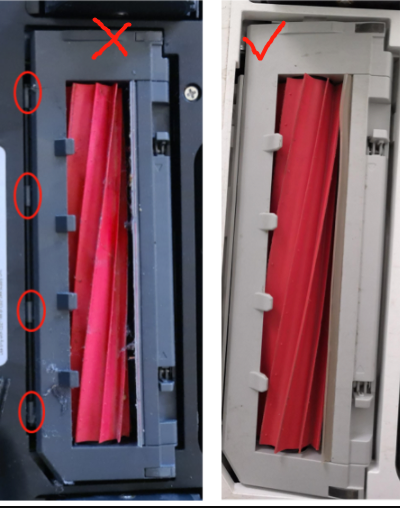
1. Run the robot without the main brush and brush cover. If the noise disappears, reinstall them correctly. The tabs on the brush cover must align with the slots on the housing, see attached picture.
2. Uninstall the side brush and test again.
3. Uninstall the front wheel and test again.
4. Press and rotate the drive wheels by hand to check for abnormal noise.
5. Clean the dustbin and filter, or switch to the lowest suction mode and test again.
6. Run the robot without the mop mount or use Vacuum Only mode to test.
Our device doesn't support 5GHZ wifi. If your set-up steps are correct but it's still not connecting, try methods below:
1. Make sure the password of your wifi you've input is correct.
2. Enable location permission for the app. See attached picture.
3. If you're using IOS 14 or later systems, please enable local network for the app. See attached picture.
4. Pay more attention to the “choose wifi network". Please choose your home wifi and input the password, instead of the robot’s wifi.
5. If there are special characters like !@#$ in your wifi name or password, it's suggested to remove them in the router settings.
6. The robot doesn't support WEP encryption mode. If your wifi is WEP, change it to WPA or WPA2.
7. If you understand the router's setting very well, try to change DNS to 8.8.8.8 in the router's settings page.
8. Reboot your device and router and try again.
9. If your phone's cellular network or VPN is enabled, please disable them and try again.
If the wifi connection still fails, please contact Roborock Customer Support.
Change the mop cloth and water filters then try again.
Do not use cleaning products in the water as this may block the filter.
Use a needle to gently clean the water outlet.
Put the water tank on a flat surface and look for bending.
A bent water tank will need to be replaced.
The robot might experience issues returning to its dock if it was started in a different location, if it is hitting an obstacle, or if it was moved manually. If this is occurring, try one of the below solutions:Move the dock to a new location and see if the robot can locate it. The dock should be placed against a wall, have at least 0.5m of clearance either side and 1.5m in front. Then, clean the front signal transmission area of the dock and the robot’s front sensor, both of which are used for the robot to locate the dock.
Zone cleaning may fail if the zone is set in an area that was previously behind a closed door.
Start a normal cleanup near the open door, then start a zone cleanup once the robot has realized the door is open.
If you continue to experience this error, contact Roborock Customer Support.
First, make sure there are no obstacles preventing access to the missed areas.
Second, most missed areas and abnormal cleaning paths are caused by dirt on the wall sensor on the right of the robot. Use a damp cloth to wipe the wall sensor and run another cleanup to see if this has resolved your issue.
The map displayed in-app should only be horizontal or vertical. If it appears at an angle, this may be due to the placement of the dock. Move the dock to a new location, with at least 0.5m of clearance on either side and 1.5m in front. You can also try switching off Map Saving then switching it back to create a new map with your next cleanup.
Check the blocked strainer, and repalce the filter to see if the problem is solved.
If you continue to experience this error, contact Roborock Customer Support.
Please try the following steps first:
Reset the system
Open the top cover of the robot and press the Reset button.
Note: A system reset will restore all current settings to factory defaults, including Wi-Fi and scheduled cleanups.
The position of the Reset button may vary slightly by model. Please refer to your user manual or the diagram shown in the app to locate it. You may also refer to this video for guidance: https://youtube.com/shorts/9F8as9-PbD0
If you continue to experience this error, contact Roborock Customer Support.
Roborock Error 18: Clap the side of the robot several times to try and clear debris from the fan.
If you continue to experience this error, contact Roborock Customer Support.
The robot charges when the charging contacts on the robot and dock are properly aligned and connected. If the connection is poor, charging will not start.
Dock Indicator Light when robot is docked:
· OFF = Charging contacts are properly connected, and charging is working.
· ON = Charging contacts are not properly connected.
If the Indicator Light Stays ON:
1. Reposition the robot on the dock
Slightly adjust the robot until the indicator light turns OFF. This confirms proper contact alignment.
2. Clean the charging contacts
Check both the robot and dock charging contacts for dust, stains, or oxidation. Wipe them using a dry cloth or cloth lightly moistened with alcohol, or gently rub with an eraser.
3. Check the power connection
Ensure the dock power cable is firmly inserted into the dock and the wall outlet. Try a different outlet if needed.
After completing the steps, place the robot back on the dock and confirm the indicator light turns OFF.
Roborock Error 10: Clean the filter, dry it thoroughly and place it back in the robot then try again.
If you continue to experience this error, contact Roborock Customer Support.
Roborock Error 9: Look for the magnet on the side of the filter.
If you do not find a magnet, replace the filter and try again.
If you continue to experience this error, contact Roborock Customer Support.
Roborock Error 7: Press and spin the wheels manually to check if they are stuck. If they are stuck, attempt to free them. If you continue to experience this error, contact Roborock Customer Support.
Roborock Error 5: Make sure that there is nothing tangling up the main brush, including inside the two brush installation slots and at either end of the brush, then run the robot with Carpet mode enabled and see if the problem has been resolved. If you continue to experience this error, contact Roborock Customer Support.
Roborock Error 4: Wipe the cliff sensors and make sure the robot cleaner is not on the dark or shag carpet. If you continue to experience this error, contact Roborock Customer Support.
Roborock Error 1: Turn on the robot and watch to make sure the laser unit is spinning.
If the laser unit is not spinning, gently rotate it manually, then restart the robot.
If you continue to experience this error, contact Roborock Customer Support.
If the above materials do not help, contact us and we'll get back to you as soon as possible.
support-us@roborock.com
We'll get back to you within 1 business day.
1-855-960-4321
Helpline hours: 24/7, US only