support-us@roborock.com
We'll get back to you within 1 business day.
1-855-960-4321
Helpline hours: 24/7, US only

1. Only the following models support QR code.
Roborock Q7 Max Series
Roborock Q7 Series
Roborock Q5 Series
Roborock S8 Series
Roborock Q Revo
Roborock Q5 Pro Series
Roborock Q8 Max Series
Other models don't support QR code.
2. I cannot find the QR code.
Some products do not have QR code. To add one of these devices, go to the Roborock app homepage and tap "Search for Device". Please tap on "No QR code found" and proceed with the next step. See picture below:
3. If I'm using the models that supports QR code, where's the QR code?
The QR code is located below the top cover or dustbin or on the top of the machine.
QRcode: Scan the QR code below to download and install the app:
App Store:
https://apps.apple.com/us/app/roborock/id1462875428
Google Play:
https://play.google.com/store/apps/details?id=com.roborock.smart&hl=en&gl=US
The following applied to all roborock products.
We do not recommend adding non-roborock cleaner into the water tank as bubbles created by the cleaner may block the filter. If you use roborock cleaner, please dilute it (dilution ratio 1:300) before using.
The following applies to Q Revo, S8 Pro Ultra, S8+, S8, S7Max Ultra, S7MaxV, S7, S6MaxV, S6Pure, S5Max and S4Max.
You can set the device to do a zone/room cleaning for more than once. In this way, the device will follow a cross-hatch pattern.
The following applies to Roborock S7, S7MaxV, S7Max Ultra, S6MaxV, S8, S8+ and S8 Pro Ultra only.
There are two ways to turn on child lock.
Once the child lock is enabled, the device will not respond if any button is pressed until you disable the lock.
Mihome app user
Mihome app user:

Roborock app user:

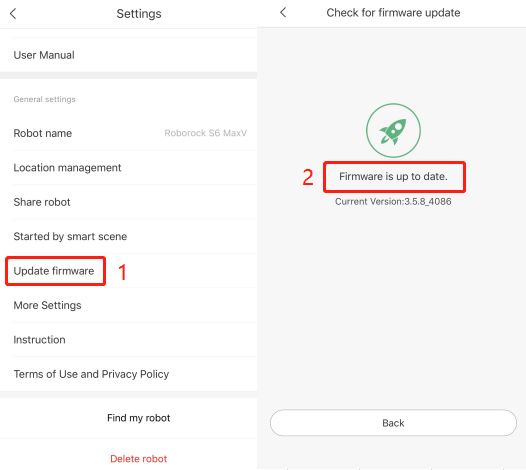
Go to Settings page, click Firmware Updates.
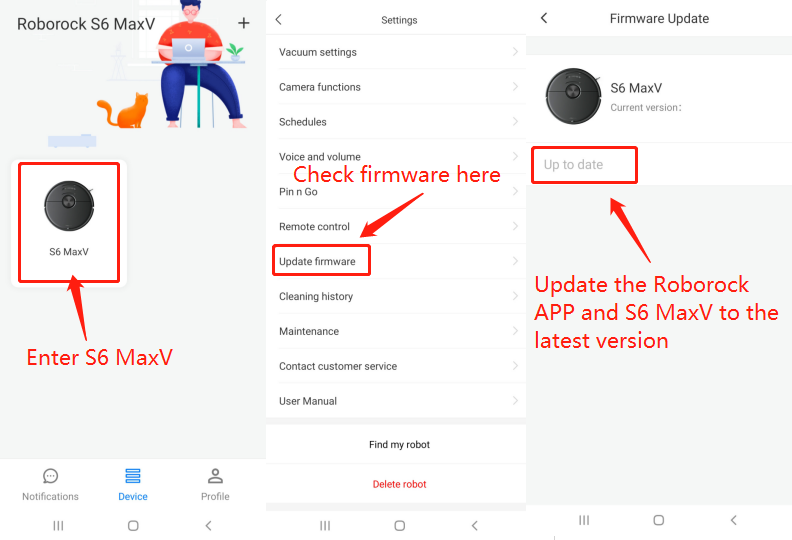
Go to Settings page and click Update Firmware.
It helps the the robot identify and avoid obstacles on the ground more intelligently, which can effectively reduce abnormal problems such as stuck issue.
And you can view its cleaning task and your house with its camera at any time and any where.
Do not worry, the visual recognition feature works locally only.
1. Go to Camera functions-Remote viewing page to turn it on first.
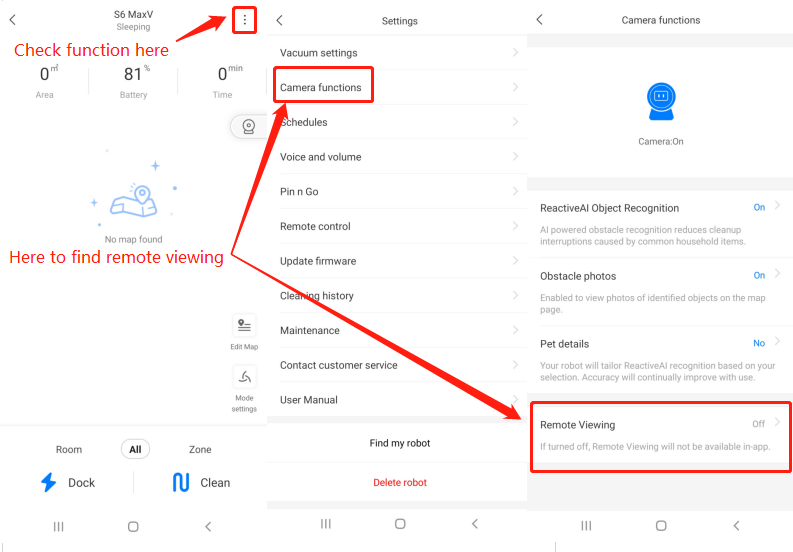
2. Go back to the Home page and you will see a camera icon on the right side.
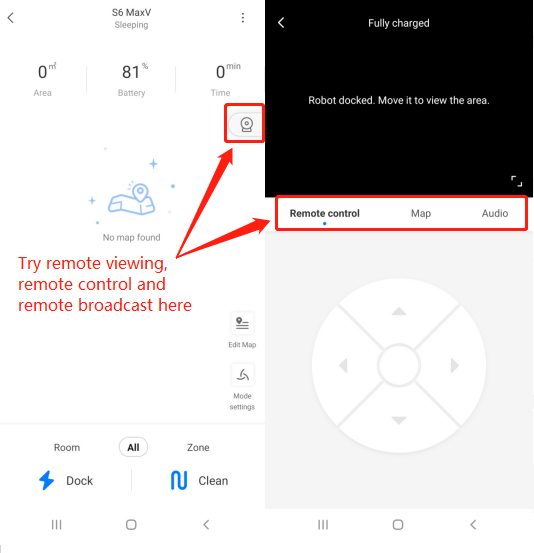
3. Click it and you can enjoy the Remote Viewing features. Including Remote control, Map and Audio. See pictures listed below.
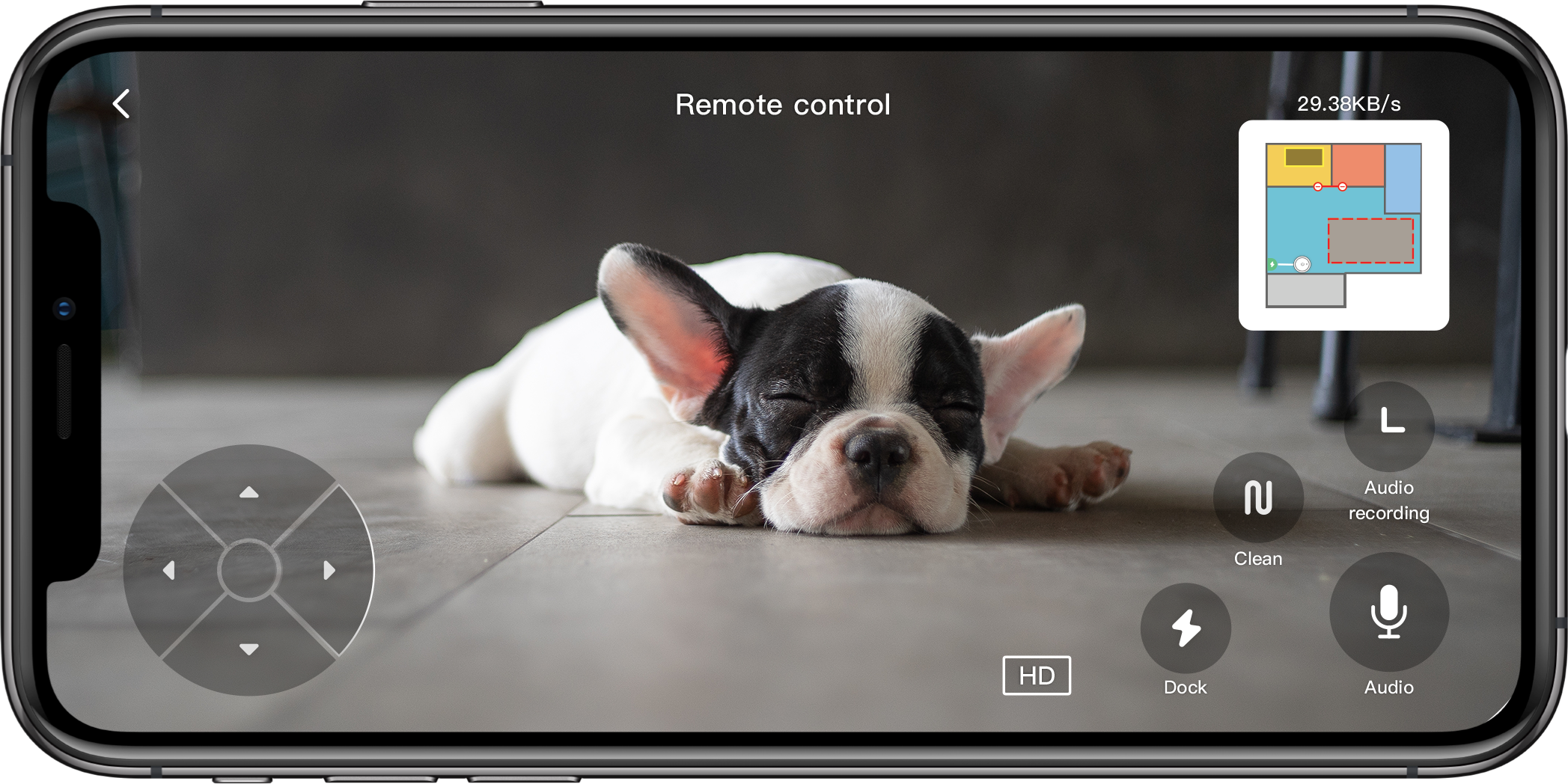
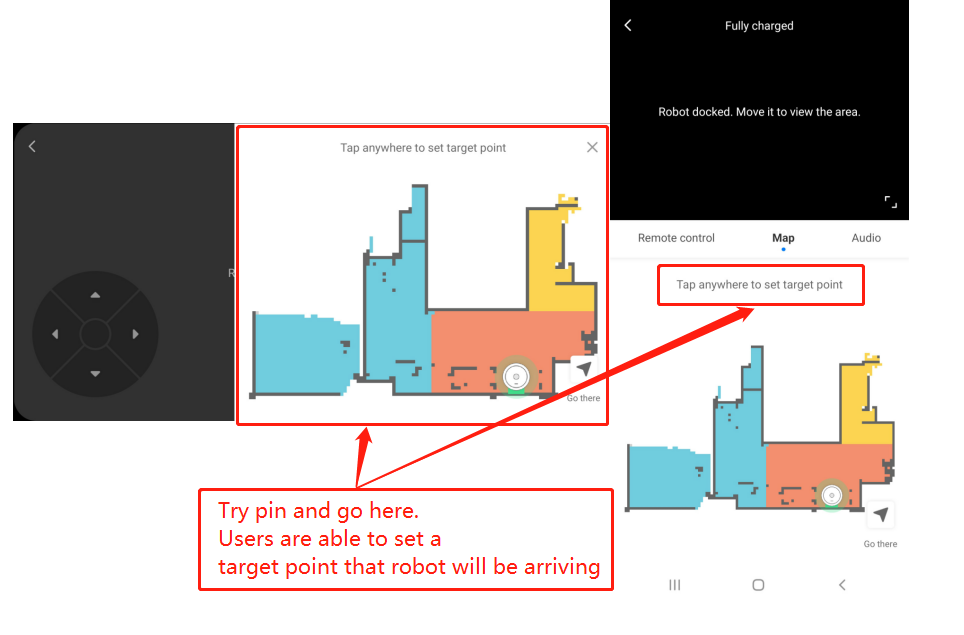
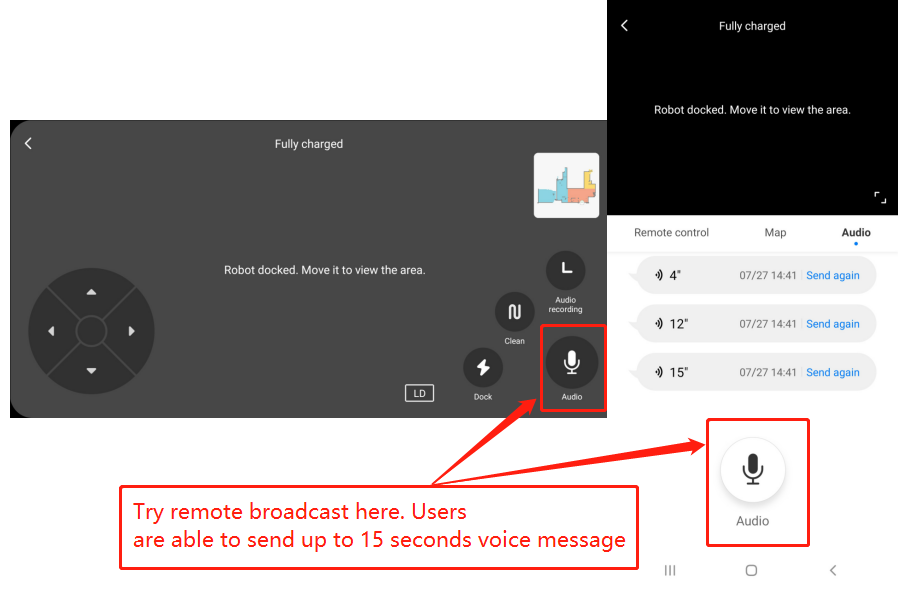
The camera functions include 4 parts, check information below.
Here is the brief description for how to use it:
Below we take S7 as example. There may have slight difference due to different models and firmware versions.
For the first map, when robot is creating the first map, there are 4 requirements to meet:
For the 2-4 maps, please change building layout to multi-floor (for others: enable multi-floor maps feature) first and click “create new map”, and then "create", you don't need to move the charging dock together with the vacuum to the other floor. You just need to move the vacuum alone to map that floor. The vacuum will come back to the starting point where you let it start the cleaning, and store the new map.
After all maps are successfully created, you don't need to carry the charging dock with the vacuum to the other floor. Just move the vacuum alone, start the vacuum and it will recognize which floor it is, and use the corresponding map.
How many maps can robot cleaner save?
How do I reset saved cleaning map?
How do I merge or divide rooms on the map?
You can check below table for more information.

How long does it take to charge the Roborock H6?
Does continually connecting the machine to the charger or charging stand damage the battery?
Should I unplug the dock charger when the robot cleaner is fully-charged?
Why does the vacuum indicate “Low Battery Charge Soon”?
Why is the battery not full even after charging for a long time?
The climbing ability of all the products, except S4 is 2cm (0.79inch), including S6 MaxV, S6 Pure, S6, S6 Max, S5, E4, E2/E3, C1, while the S4 is 1.5 cm (0.59inch).
When robot is creating the first map.
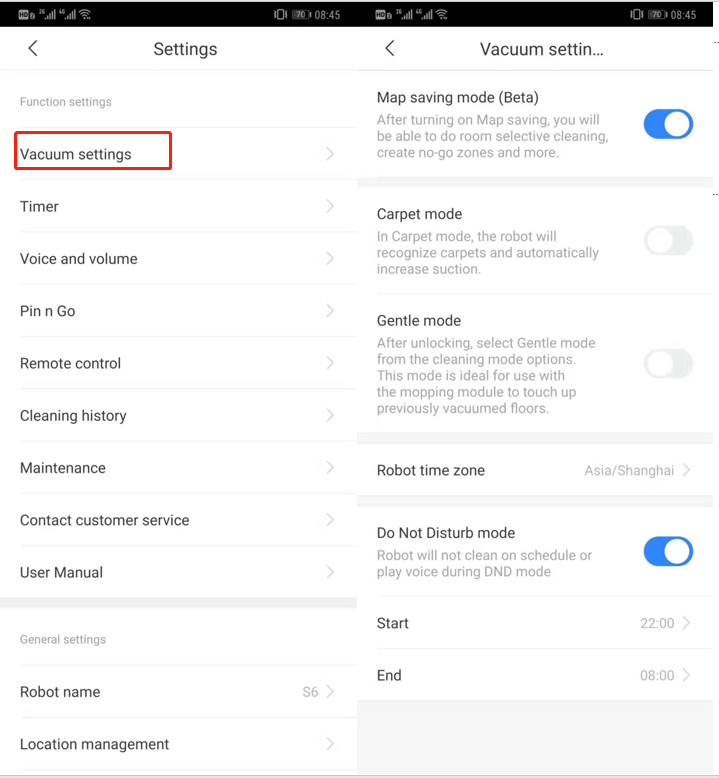
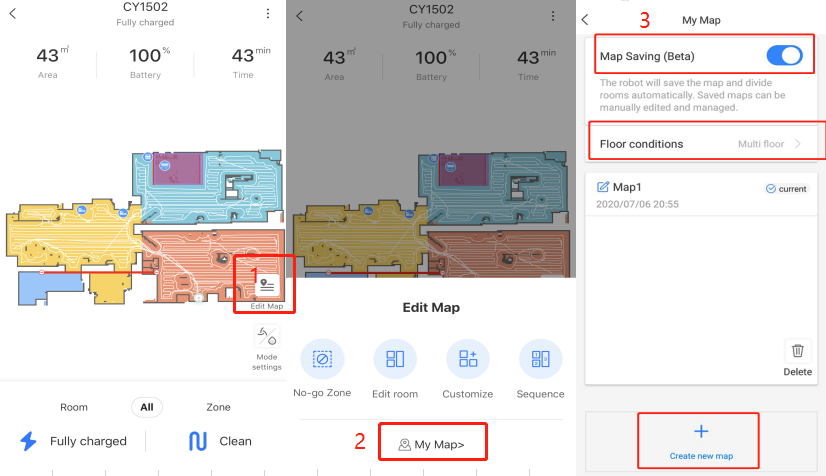
1. Map saved mode is enabled.You can go to "Vacuum settings" page or "Edit map" page.
2. Robot starts from dock.
3. Robot goes everywhere on map it detects to clean, not just somewhere. Pls make sure the doors are open for the rooms you want to be displayed on map.
4. Robot returns to dock(whose position is not moved) by itself and successfully.
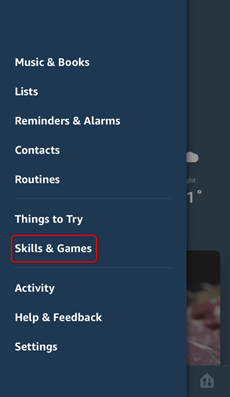
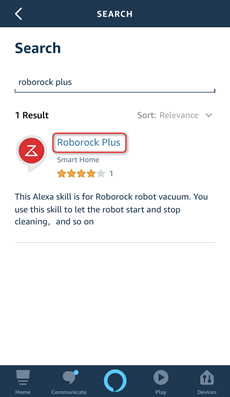
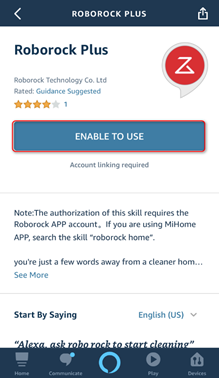
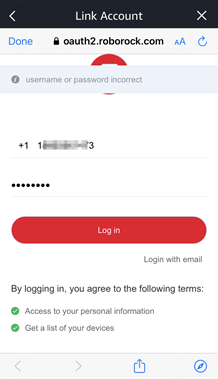
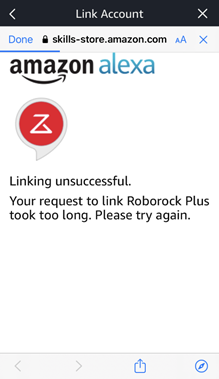
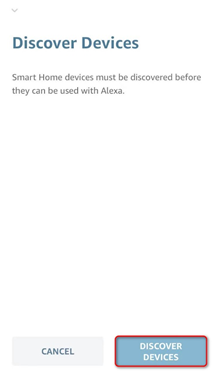
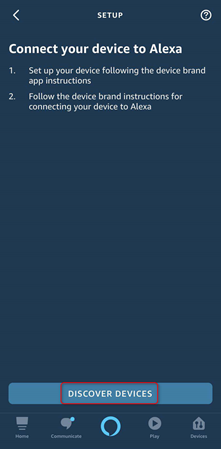
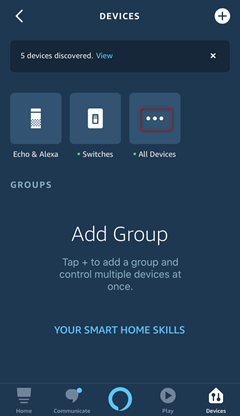
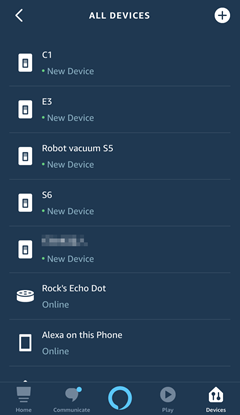
Roboorck Plus is a skill that will allow users to bind their Roboorck ID to the Amazon Alexa. After account linked, users will be able to control the Roborock devices via Alexa.
Note: Make sure your robot is added and online on Roborock app (not Mi Home) first.
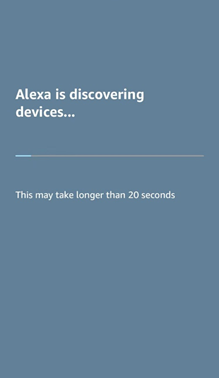
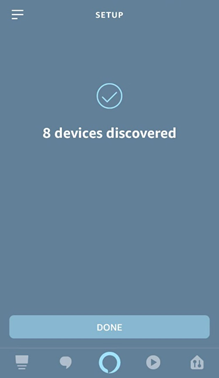
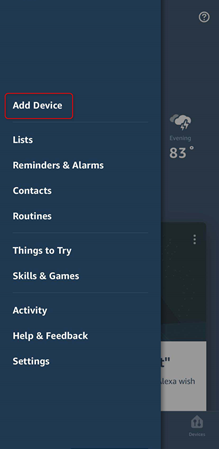
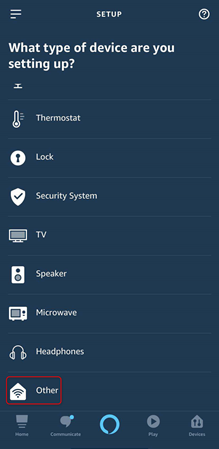
How do I connect robot vacuum to alexa via skill Roborock Home or Mi Home?
How do I connect robot vacuum to Google Home?
How to connect Roborock to Mi Home on an Android device?
How do I connect my robot cleaner to Roborock app on an iOS device?
How do I connect my robot cleaner to Roborock app on an Android device?
Why cannot my robot cleaner work under China region of Mi Home app?
You could set schedule cleaning on app. See picture below: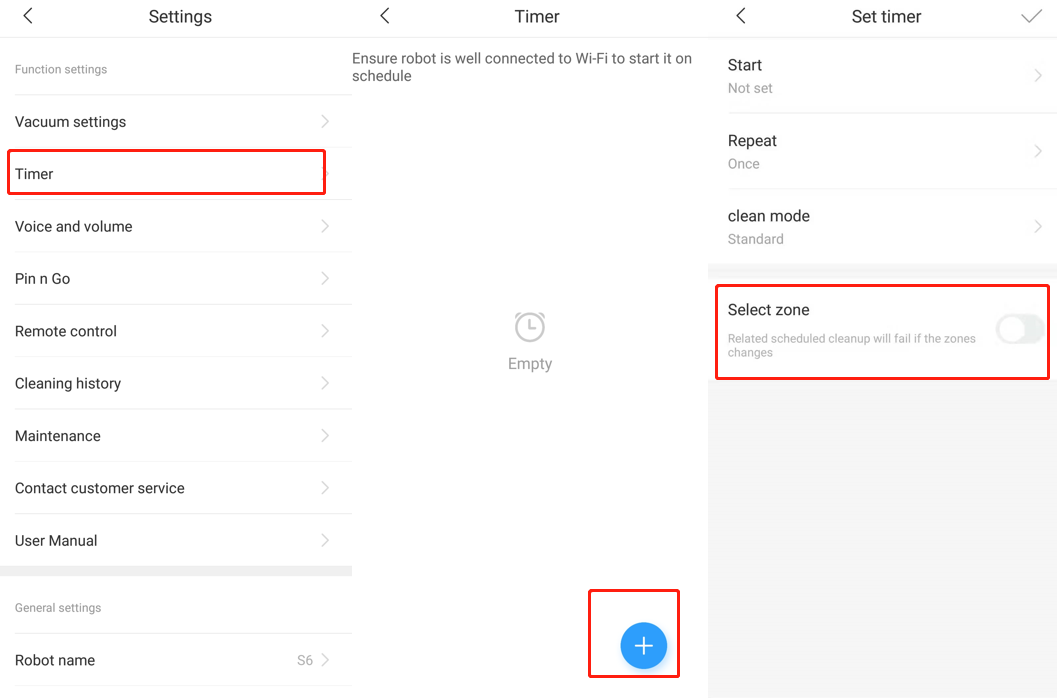
How do I set schedule cleaning for Roborock E series?
Why does S6 MaxV not support scheduled room cleaning anymore?
Will Roborock robot support scheduled room cleaning with multi-floor maps feature enabled?
Step 1. Hold the home icon button for 3-5 seconds.
Step 2. Use a pin to press the reset button next to wifi LED just once, and power button, home button and spot cleaning button's light will be out. When you are doing this, please make sure home button is still under your finger's holding without moving.
Step 3. Keep holding home button for 5 seconds after you press reset button until power button blinks again and you hear the tone "Restoring the initial version. It will take about five minutes. Please wait patient", and then you could remove the finger.
Notice:
1. Factory default restore will disconnect RoboVac from wifi. Please re-add it after factory default restore.
2. Factory default restore will also make RoboVac's firmware version come back to original one when it was made in factory. After factory default restore, you could go to RoboVac's setting--general setting--check for updates to upgrade its firmware to latest one.
3. Factory default restore will delete all your setting on device like scheduled cleaning.
4. Factory default restore will delete every single cleaning's log including every cleaning's duration, size and map. But the total duration, total times of cleaning and total size will be still kept there.
Standard dock can operate between 100 V-240 V AC (Volts Alternating Current).
Auto-Empty Dock (or any dock with emptying function) works as follows:
US version: 100V-120V
EU version: 220V-240V
AU version: 220V-240V
JP version: 100V-127V
KR version: 220V-240V
TW version: 100V-127V
RU version: 220V-240V
UK version: 220V-240V
Check your regional voltage before use.
Notes:
a. Make sure your phone is already connected to Wi-Fi;
b. Open the top of your cleaner to see the Wi-Fi indicator light during the connection process.
Related FAQ:
How do I connect my robot cleaner to Roborock app on an iOS device?
How to connect Roborock to Mi Home on an Android device?
How to connect Roborock to Mi Home on an iOS device?
Notes:
a. Make sure your phone is already connected to Wi-Fi;
b. Open the top of your cleaner to see the Wi-Fi indicator light during the connection process.
Note:
The Wi-Fi indicator on the top of your vacuum will go from flashing to solid if it has connected successfully.
Related FAQ:
How do I connect my robot cleaner to Roborock app on an Android device?
How to connect Roborock to Mi Home on an Android device?
How to connect Roborock to Mi Home on an iOS device?
a. Make sure your phone is already connected to Wi-Fi;
b. Open the top of your cleaner to see the Wi-Fi indicator light during the connection process.
3.3.2.1 Select your device’s model from the “Home appliance” category.
3.3.2.2 Tick “Operation confirmed”.
Related FAQ:
How to connect Roborock to Mi Home on an iOS device?
How do I connect my robot cleaner to Roborock app on an iOS device?
How do I connect my robot cleaner to Roborock app on an Android device?
How do I connect robot vacuum to Amazon Alexa via Roborock Home or Mi Home?
How do I connect robot vacuum to alexa via skill Roborock Plus?
Notes:
a. Make sure your phone is already connected to Wi-Fi;
b. Open the top of your cleaner to see the Wi-Fi indicator light during the connection process.
Note:
The Wi-Fi indicator on the top of your vacuum will go from flashing to solid if it has connected successfully.
Related FAQ:
How to connect Roborock to Mi Home on an Android device?
How do I connect my robot cleaner to Roborock app on an iOS device?
How do I connect my robot cleaner to Roborock app on an Android device?
How do I connect robot vacuum to Amazon Alexa via Roborock Home or Mi Home?
How do I connect robot vacuum to alexa via skill Roborock Plus?
How do I connect robot vacuum to Google Home?
Why cannot my robot cleaner work under China region of Mi Home app?
| We are sorry to tell you that your vacuum cleaner is Non-Chinese version and can't work together with your other Mi devices with Chinese version under China Mainland server. This is because we have to comply with local country laws that device's data could not be saved in a server in China. Sorry for that and hope you can understand and forgive it. |
|
Carpet boost mode means device will auto increase suction strength to max when it is on carpet to vacuum stuff better. The brush could recognize carpet by feeling its resistance increased, comparing to hardwood or tile. The suction strength will recover to normal on hard floor when resistance decreases.
Related FAQs:Why does robot cleanner refuse to clean the shag carpet? Why does robot cleanner refuse to clean the dark carpet? |
|
Usually, we suggest customers put device on dock all the time if it is used every week. After battery is fully charged, only mother board of device is charged and customers don't need worry battery is fully charged for a long time and may decrease the lifespan. Besides, the device will turn off auto without any operation after 24 hours if it is not on dock and customers have to manually hold power button to turn on it, which is not convenient if it is often used. Of course, we still suggest customers turn off device if it will not be used for several months.
Related FAQ:Does continually connecting the machine to the charger or charging stand damage the battery? What should I do when the robot cleaner cannot find its dock? How long does Roborock take to get fully charged? Why is the battery not full even after charging for a long time? |
|
Yes. Mi Home app supports the feature. You could use your phone to control the robot cleaner. It applies to all products. Roborock app has this feature, which applies to S4, S5 Max, S6, S6 Pure, S6 MaxV and S4 Max, and S7. |
|
No. We recommend adding water into it regularly.
Related FAQs:Will I receive an alert when the dustbin is full? Can I add cleaner into the water tank when moppings? What should I do when there is little water leaking from tank and mopping cloth is almost dry? |
|
We are sorry to tell you that our products do not alert when a dustbin is full, only when it has not been emptied for an extended period. We recommend emptying the dustbin regularly.
Related FAQs:Will I receive an alert when the water tank is empty? What does "MAX" on the transparent dust bin mean?
Related Tutorials Video:Roborock S6 Emptying and Cleaning the Dustbin Roborock S5 Emptying and Cleaning the Dustbin |
|
No. We suggest others use the owner's app account as one account could be signed in on multiple phones at the same time.
Related FAQ: |
|
Yes. The robot cleaner work without Wi-Fi and can carry out full-home cleanups, spot cleanups, and return to the dock with the push of a button. Connecting to Wi-Fi enables advanced features including scheduled cleaning, suction power strength selection, and more. |
If the above materials do not help, contact us and we'll get back to you as soon as possible.
support-us@roborock.com
We'll get back to you within 1 business day.
1-855-960-4321
Helpline hours: 24/7, US only