support-us@roborock.com
We'll get back to you within 1 business day.
1-855-960-4321
Helpline hours: 24/7, US only

The robot charges when the charging contacts on the robot and dock are properly aligned and connected. If the connection is poor, charging will not start.
Dock Indicator Light when robot is docked:
· OFF = Charging contacts are properly connected, and charging is working.
· ON = Charging contacts are not properly connected.
If the Indicator Light Stays ON:
1. Reposition the robot on the dock
Slightly adjust the robot until the indicator light turns OFF. This confirms proper contact alignment.
2. Clean the charging contacts
Check both the robot and dock charging contacts for dust, stains, or oxidation. Wipe them using a dry cloth or cloth lightly moistened with alcohol, or gently rub with an eraser.
3. Check the power connection
Ensure the dock power cable is firmly inserted into the dock and the wall outlet. Try a different outlet if needed.
After completing the steps, place the robot back on the dock and confirm the indicator light turns OFF.
Please try the following steps first:
Reset the system
Open the top cover of the robot and press the Reset button.
Note: A system reset will restore all current settings to factory defaults, including Wi-Fi and scheduled cleanups.
The position of the Reset button may vary slightly by model. Please refer to your user manual or the diagram shown in the app to locate it. You may also refer to this video for guidance: https://youtube.com/shorts/9F8as9-PbD0
If you continue to experience this error, contact Roborock Customer Support.
Each of these three mainstream systems has distinct strengths. The appropriate choice depends on your primary cleaning needs.
For households that prioritize ultimate mopping performance, especially those frequently dealing with kitchen grease and sticky spills, the Qrevo Curv 2 Flow's roller mop system is the better choice.
If robot says error 164 tof cliff sensor error, please reset the device to see if that works.
The exact position of the Reset button may vary slightly by model. Please refer to the user manual or the diagram shown in the app for the correct location. You may also refer to this video for guidance:
https://youtube.com/shorts/9F8as9-PbD0
You can try the methods below:
1. Raise the robot up, and clap the bumper for several times. See video below: https://drive.google.com/file/d/1ygEOuRIadiHHSui0CA9nLFI2o6EUHce5/view?usp=sharing
2. Use a blower to aim at the gaps between the robot and bumper, blow it.
Please try the following:
1. Rotate and press the main wheels to check whether there's any foregin objects stuck inside.
2. Check where the issue happened and if issue only happened on carpet, or everywhere including hardfloor and carpet.
3. Put the device on the ground, push it aggressively forward&backward for around 10 sec (like using an eraser). You can push it with some force like in the video below: https://youtu.be/MiBkw_lcTF8
4. Take out and check the main brush, main brush cover, water tank (if applicable), and mop mount for any signs of deformation or blockage. Try running the robot without these parts (if possible) to see if the issue persists.
Please try the following:
1. Rotate and press the main wheels to check whether there's any foregin objects stuck inside.
2. Check where the issue happened and if issue only happened on carpet, or everywhere including hardfloor and carpet.
3. Put the device on the ground, push it aggressively forward&backward for around 10 sec (like using an eraser). You can push it with some force like in the video below: https://youtu.be/MiBkw_lcTF8
4. Take out and check the main brush, main brush cover, water tank (if applicable), and mop mount for any signs of deformation or blockage. Try running the robot without these parts (if possible) to see if the issue persists.
If robot says error 4 cliff sensor error,
1. Please test if the error only happens on carpet, but not on hard floor.
2. If the cliff sensors on the bottom of the robot are dirty (refer to the attached image for the locations) are dirty, gently wipe them clean.
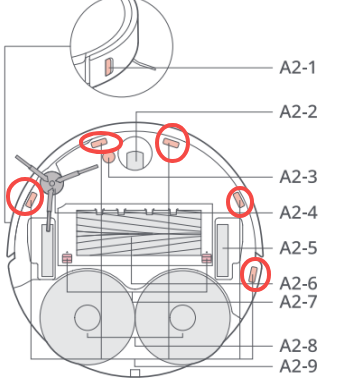
Please try the steps below:
1. Check if there is anything entangled in the main brush, including the brush itself, its two ends, and the 2 slots in the housing for installing the brush. See attached picture "main brush slots".
2. Please test if the robot will report the error on both hard floor and carpet. If the robot reports the error only on carpet, but works fine on hard floor:
1) Please enable carpet mode. If the mode is on, the robot will automatically increase the suction to max when it's on carpet.
2) Upgrade your firmware to the latest version.
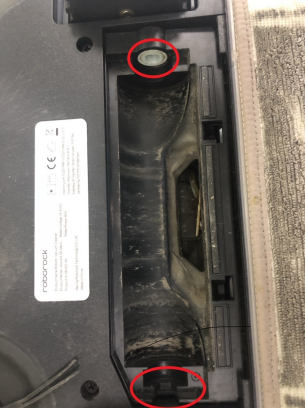
Please try the following checks:
1. Inspect the side brush area.
Uninstall the side brush and check if any hair, dust, or debris is tangled around the mount or gear area. Clean it thoroughly and reinstall the brush firmly onto the drive shaft.
2. Restart the robot.
Hold the power button to reboot the device, then test again to see if the side brush can extend and rotate normally.
Please try the methods below:
1. Do not move the robot while it is cleaning. Otherwise, it may lose its position and report Error 8.
2. If the error frequently occurs at a specific spot, please send us a picture showing that area.
3. Turn the robot over to check if anything is stuck in the wheels. Manually rotate them to feel if they are too loose or too tight.
4. Also check whether the main brush is properly installed and if the main brush cover (especially the inner side) is damaged.
5. If the water tank or mop mount is detachable, clear it and test whether the error still appears.
6. Check if anything is stuck in the front wheel following the video below: https://youtu.be/-bcjh4p9U3M
7. Delete the current map and remap your home to see if the issue persists.
You could try the methods below.
1. Empty the dust bin. Clean the filter and dry it outside in the sunshine for at least 12 hours.
2. Replace the filter with a brand new one. Then please reboot your device to see if the error will go away (take the robot off the dock, then long press the power button to switch it off and then press the same button to turn it back on).
3. Adjust the cleaning mode to balance/normal and see if the issue persists.
4. Try to upgrade the firmware version of your robot.
6. Clap the fan slightly like the video below.
https://drive.google.com/open?id=17mOVnVn7aNj_k2IRSDsfvd5WwSrluSg-
You could try the methods below.
1. Empty the dust bin. Clean the filter and dry it outside in the sunshine for at least 12 hours.
2. Replace the filter with a brand new one. Then please reboot your device to see if the error will go away (take the robot off the dock, then long press the power button to switch it off and then press the same button to turn it back on).
3. Adjust the cleaning mode to balance/normal and see if the issue persists.
4. Try to upgrade the firmware version of your robot.
6. Clap the fan slightly like the video below.
https://drive.google.com/open?id=17mOVnVn7aNj_k2IRSDsfvd5WwSrluSg-
If the internal error is related to the short or open circuit of the wheel or ODO error, like error 105, 106, 107, 108 or 116, please try the method below:
1. Put the device on the ground, push it aggressively forward and backward for around 10 seconds to work the wheels back and forth. You can apply some force, as shown in the video below:
https://youtu.be/MiBkw_lcTF8
2. When you feel there is less resistance in the wheels, start cleaning again to see if it works.
Notice: Manually pushing the device may cause the motor to overheat. If the resistance is still high after working the wheels for 10 seconds, please wait for the motor to cool down and then try again.
Please try the following steps first:
Reset the system
Open the top cover of the robot and press the Reset button.
Note: A system reset will restore all current settings to factory defaults, including Wi-Fi and scheduled cleanups.
The position of the Reset button may vary slightly by model. Please refer to your user manual or the diagram shown in the app to locate it. You may also refer to this video for guidance:
https://youtube.com/shorts/9F8as9-PbD0
If you still cannot find the Reset button, please let us know.
If the above materials do not help, contact us and we'll get back to you as soon as possible.
support-us@roborock.com
We'll get back to you within 1 business day.
1-855-960-4321
Helpline hours: 24/7, US only